Googlebot 403 Forbidden: Bot Protection or Cloaking?
The website opens normally in your browser. Your crawler check gets 403 Forbidden. The report shows a huge content difference, and suddenly you are explaining a possible hack to a client who can still see their homepage.
Before you call it cloaking, inspect the response that produced the difference. Comparing a real landing page with an eleven-word access-denied screen can produce an alarming percentage. It still leaves the cause unresolved.
A Googlebot 403 error can come from legitimate bot protection, an overly broad firewall rule, or a compromised site. The first job is to identify which request was blocked. The next is to find out whether another version of the page actually exists.
1. What a Googlebot 403 actually tells you
A 403 response tells you that the server or an intermediary refused the request. It does not identify the decision-maker. A CDN, hosting firewall, security plugin, or application can all be involved. The hostname in the address bar does not tell you which layer answered.
There is an SEO consequence if verified Googlebot receives that denial on a public page you want indexed. Google explains that it ignores content returned with most 4xx responses, including 403, and that previously indexed URLs returning those responses are removed from the index over time. A persistent block therefore needs attention even when no malware is involved. See Google’s HTTP status code documentation.
Keep the affected resource in view. A 403 on a private account area may be intentional. A 403 on a public service page needs a different explanation. A 403 on /robots.txt is another case: Google treats most robots.txt 4xx responses as if no valid rules file existed. Denying that file is not a reliable way to prevent crawling.
2. Classify both responses before reading the percentage
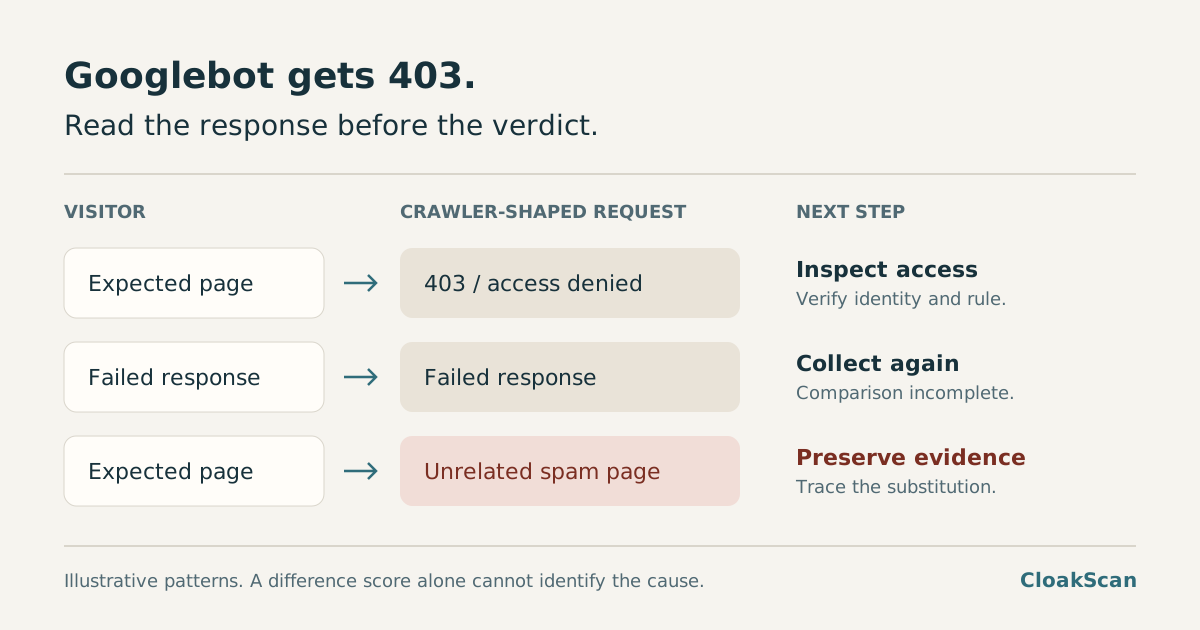
A difference score becomes useful when you know what was compared. The following examples are diagnostic patterns, not automatic verdicts.
| Visitor response | Crawler-shaped response | What to investigate |
|---|---|---|
| Expected page | 403 / access denied | Request identity and the blocking rule. No alternative content has been demonstrated. |
| Expected page | Challenge screen | Whether the test reached the page or stopped at bot verification. |
| Expected page | Casino or pharmacy page | Possible content substitution. Preserve both versions and investigate the compromise. |
| Empty or failed response | Another failed response | Collection failure. There is no useful content comparison yet. |
| Expected page | Expected page, different layout | Content equivalence, device rendering, and dynamic elements before escalating. |
A “100% difference” result can describe a complete text mismatch with an error page. It does not mean “100% certain this website is hacked.” A shorter page can also exaggerate how much a few changing words matter. Read the titles, visible content, response status, and redirect destination alongside the score.
HTTP 200 needs the same care. An application can return a successful status while displaying an error or a verification screen. Cloudflare documents that its Challenge Pages interrupt the request with a full HTML page. Collecting that HTML is not the same as collecting the requested content.
3. Establish whether real Googlebot is blocked
“Googlebot gets 403” often means “a request with Googlebot in its User-Agent got 403.” That is an observation about the test you ran. Confirming crawler access takes another step.
Start with the exact URL and time
Save the full path, query string, UTC timestamp, status, and any redirect hops your test captured. Record whether the result came from a plain HTTP fetch or a rendered browser. A successful homepage check does not explain a blocked product URL, and a browser session with a clearance cookie may behave differently from a fresh request.
Check the request identity in the logs
Locate the request in your CDN or server logs. Record the client IP and the rule or action that matched. For a request claiming to be Googlebot, use Google’s verification methods: match the relevant published IP ranges, or perform reverse DNS followed by forward DNS confirmation. The User-Agent string alone is not authentication.
A monitor running from a datacenter can be rejected while verified Googlebot is allowed through. Our User-Agent versus IP cloaking guide covers the identity mechanics. Here, the practical question is whether the denied request belongs to Google, your monitoring tool, or an unverified client.
Add a Search Console live test
Inspect the URL in the correct Search Console property. Note the crawl date in the indexed report, then run Test live URL. When the test succeeds, inspect the returned HTML and screenshot where available. A result from last month cannot tell you whether today’s firewall change is working.
Google’s URL Inspection documentation distinguishes indexed data from the live test. The test is an additional Google-origin observation, using Google-InspectionTool; it does not guarantee indexing or identical treatment of every regular Googlebot request. Correlate its timestamp with your logs, then check subsequent verified crawler visits.
4. Find the rule that made the decision
Ask a narrow question in the security dashboard: which rule handled this URL, for this request, at this time? Look for a rule ID, action, request ID, and the condition that matched. If the request never reached the origin, start with the CDN or hosting layer. If it did, follow the application or plugin logs.
A datacenter restriction, rate threshold, country rule, or bot check can explain the split. A documented rule with an identifiable owner is a useful lead. An unfamiliar rewrite or recently changed rule needs more scrutiny, particularly if another response contains unrelated content. Our CDN and edge cloaking audit explains how to trace that second situation.
For a public page, correct the specific policy that is denying intended access. Use the provider’s verified crawler controls where appropriate; Cloudflare’s bot-protection guidance distinguishes verified bots from other automated traffic. Avoid an exception based only on a self-declared Googlebot User-Agent.
Retest the same URL after the change, then check a fresh visitor session and subsequent verified crawler traffic. Record the outcome. Keep any monitoring exception limited to the service and access it needs; an allowlisted scanner result does not describe every visitor’s experience.
5. What turns an access problem into a cloaking investigation
The strongest escalation signal is an alternative page with a different purpose: a business service page for visitors and a gambling landing page for the crawler-shaped request, for example. Preserve the rendered views and HTML, including destination URLs and timestamps. That gives you a specific payload to trace.
Google’s cloaking policy concerns content differences used to manipulate rankings and mislead users. A denied request does not establish that purpose. Equally, finding a firewall block does not rule out an unrelated compromise elsewhere on the site.
If the only suspicious evidence is an old search result, establish whether the spam is still live. Indexed leftovers and a current payload require different next steps; see why Google can still show spam after a cleanup. Escalate the evidence you have, and keep the unresolved parts explicit.
6. Leave a finding someone else can reproduce
An agency handover should explain exactly what failed and what remains unknown. Include these fields in the ticket:
- Target: the full URL and observation time, with timezone.
- Request: visitor, spoofed User-Agent, verified crawler, or Search Console live test.
- Response: status, final destination, title, and whether meaningful page content was returned.
- Decision point: the matching rule and action, or the layer still under investigation.
- Evidence: saved HTML, screenshots, and relevant log references.
- Next check: who will retest, what needs to succeed, and which uncertainty remains.
For example: “Our Googlebot-UA fetch received 403 on the pricing page. The visitor page loaded. Verified crawler access has not yet been checked. Hosting support is tracing the denial.” That is more useful than turning one failed comparison into a site-wide verdict.
CloakScan’s saved scan history and visitor-versus-Googlebot comparisons can provide part of that record. External scans still have a defined network identity and cannot inspect private firewall rules. Use the guide to inconclusive results when a report lacks comparable responses, then bring the specific evidence to the person who controls the blocking layer.
Frequently asked questions
Does a Googlebot 403 error prove that my site is hacked?
No. A 403 response establishes that a request was denied. It does not establish why it was denied or whether an alternative spam page exists. Verify the request identity, inspect the blocking rule, and compare any available page content before deciding whether this is an access issue or a compromise.
Can a firewall block a Googlebot test without blocking real Googlebot?
Yes. A test that changes the User-Agent still uses the testing server's network identity. A firewall may reject that request while permitting verified Google crawlers. Check verified crawler requests in your logs and use Search Console's live URL test as an additional observation.
Why does a cloaking checker show 100% difference for a 403 page?
A normal page and an access-denied page may share almost no text. A high difference score describes that mismatch; it is not a percentage probability that the site is compromised. The two responses need to be classified before the score can support a cloaking finding.